
Most SEO tools were built to audit one site. Crawl Cove was built to manage a book of clients, and its interface reflects that from the first screen. There are two navigation levels: a global agency rail for the whole portfolio, and a per-client workspace you enter by selecting a client. Learn the boundary between them once and the whole app gets faster.
Level one: the agency rail
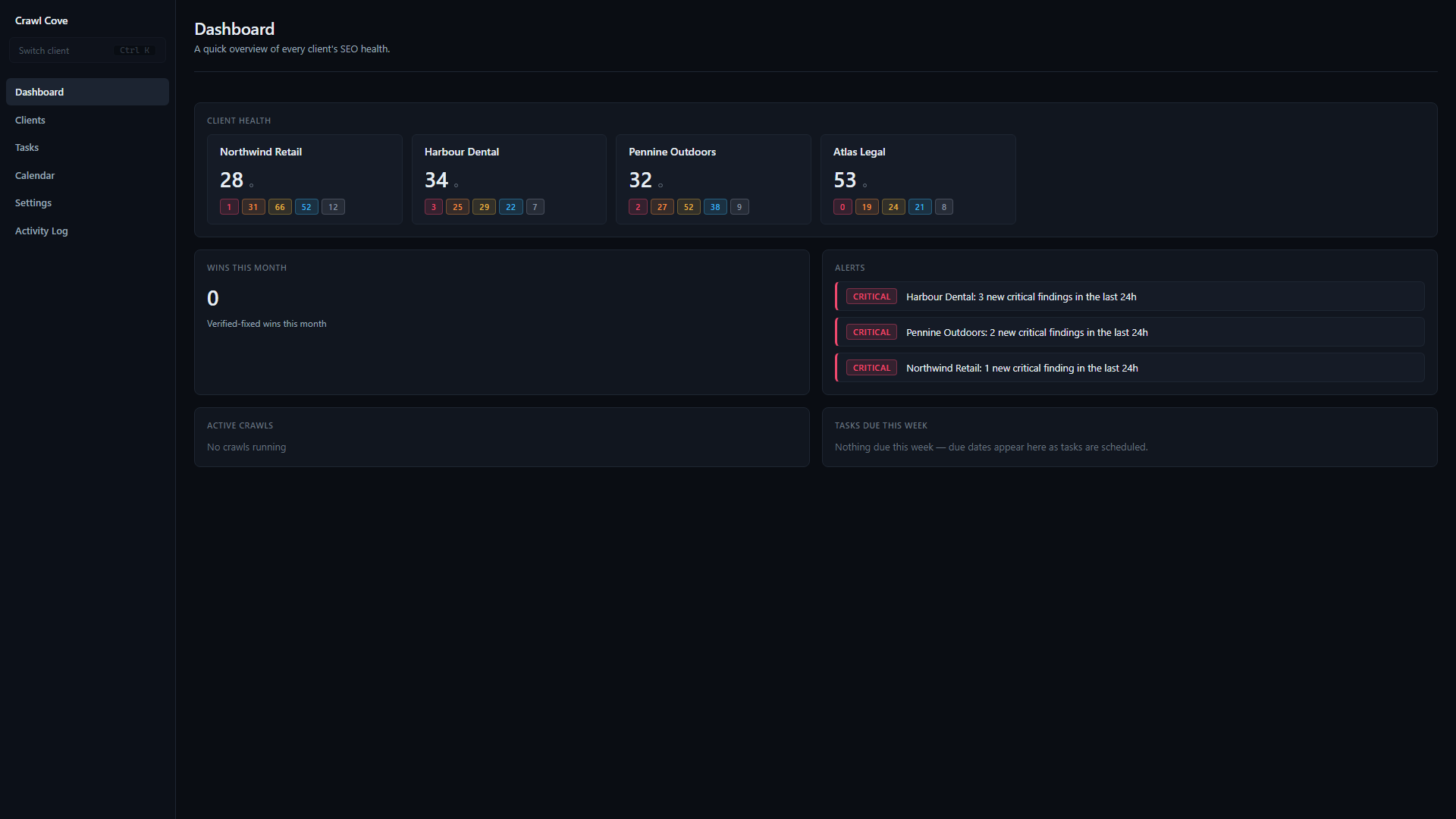
When the app opens, you're at the agency level, the view across every client you manage. The global rail holds:
- Dashboard: a 30-second triage of every client, with a health-score grid, an alert feed, currently-running crawls, and tasks due this week.
- Clients: the portfolio table, plus the Add Client button.
- Tasks: every task across every client in one list, so you can plan your actual week without diving into individual workspaces.
- Calendar: scheduled crawls, report deadlines, and client calls, colour-coded per client.
- Settings: machine config, agency branding, the LLM backend, and API keys.
- Activity Log: a chronological, filterable diagnostics feed.
This level answers "how is the whole agency doing right now?" It never makes you open a client just to see that one of them has a new critical finding.
Level two: the client workspace
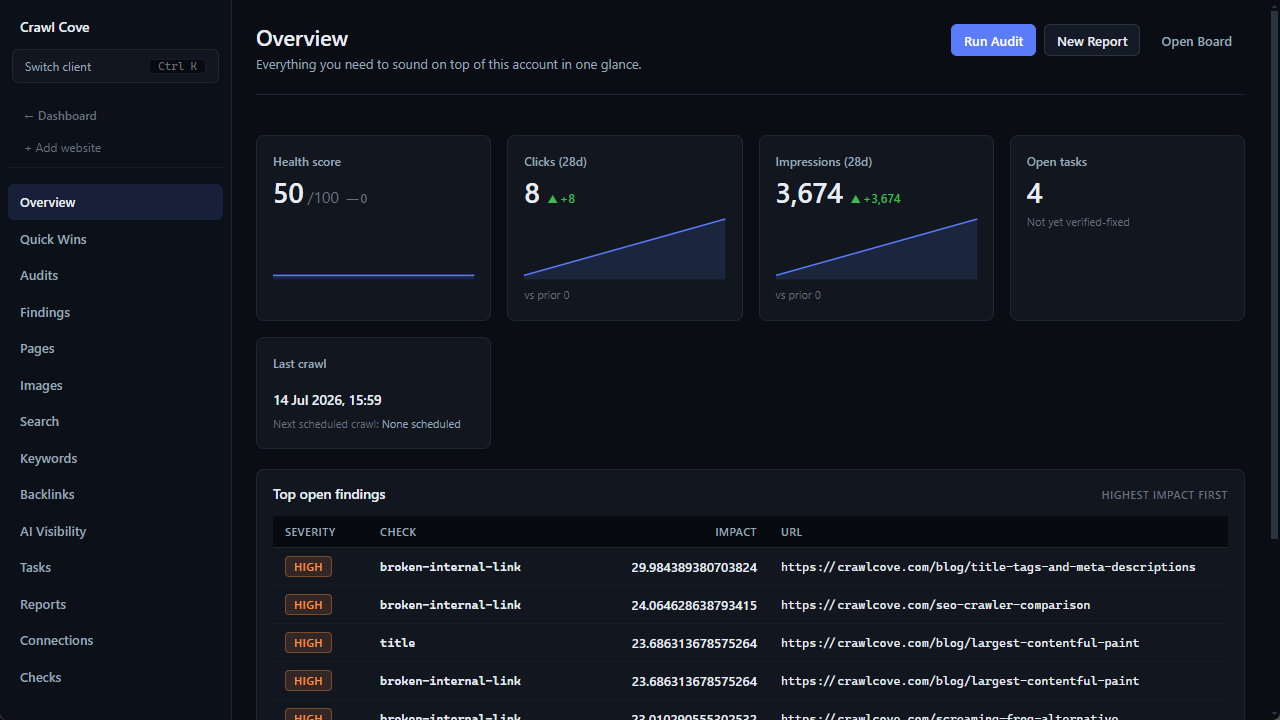
Select a client and the rail switches to that client's workspace. The global items step aside and you get the per-client tools instead:
- Overview, Audits, Findings, Pages, Search, Backlinks, AI Visibility, Tasks, Reports, Connections, and Checks.
Everything here is scoped to the client you selected. The Findings table shows that client's findings; the Audits page shows that client's crawl runs; the Connections page shows that client's Google Search Console and Bing status. You're no longer thinking about the portfolio. You're working one account.
Getting back: the breadcrumb
To return from a client workspace to the agency level, use the breadcrumb "← Dashboard" control. It always takes you back up to the global rail, so you never feel trapped inside one client. Drop in, do the work, breadcrumb back out.
Move faster: the switchers
Clicking back to the agency level and into another client works, but once you have more than a handful of clients there's a much quicker way to move around.
Tip
Ctrl+K opens the Client Switcher, a searchable modal that filters by
client name or domain. Press Enter to jump straight to the first result. At
ten or more clients this becomes the most-used control in the whole app.
Ctrl+L opens the Site Switcher for any client that has more than one
website. The chosen domain sticks via a ?site= parameter in the URL, so
refreshes and links stay on the right site.
And keep an eye on the global crawl indicator in the app shell: it animates whenever any crawl is in flight, on any client, so a background crawl on one account is visible even while you work on another.
These switchers are what let the two-level design scale. The rail keeps each
client's work tidy and separate; Ctrl+K keeps switching between them
instantaneous.
Next
- Adding your first client: fill the portfolio with the onboarding wizard.
- Keyboard shortcuts: the full power-user set
beyond
Ctrl+KandCtrl+L.