
The report is where the month's work becomes something a client can read. For most agencies that means an hour or two of copy-paste: export a crawl, drop in screenshots, hunt for the logo, rewrite the same intro, fix the page numbers. Crawl Cove's Reports page collapses that to roughly ten minutes, with the same branding every time — because the report is assembled from your real audit data, not rebuilt by hand.
It's a builder, not a template you fight. You pick what goes in; the app handles the layout, the branding, and the cover page.
Building a report
Open a client and go to the Reports page. The builder walks top to bottom:
- Choose the audit run(s) to include. Reports are built from real crawl runs, so the numbers on the page are the numbers from your audit — nothing is re-estimated for the document.
- Toggle the sections you want: executive summary, technical, on-page, AI visibility, backlinks, and a prioritised action plan. Turn off what isn't relevant for this client; the rest of the layout closes up cleanly.
- The white-label theme applies itself. The logo and brand colours you captured in the onboarding wizard flow straight into the report — capture once, reuse on every report forever. There's no per-report branding step to forget.
The executive summary: a first draft, not the final word
If you've configured the optional LLM backend, Crawl Cove drafts the executive summary for you — but it is fully editable, and that's the point. The model writes the first pass; you stay in charge of the narrative. Tighten the tone, drop in the context only you know about the client's quarter, cut a paragraph. The summary that ships is yours.
Note
The LLM here is doing the same job it does everywhere in Crawl Cove: interpretation
only. It never invents, removes, or re-scores a finding — the severity summary and
the action plan come from deterministic checks. If you run with the LLM set to
none, the summary falls back to a deterministic template and everything else exports
exactly the same. See Configuring the optional LLM backend.
Exporting to PDF or HTML
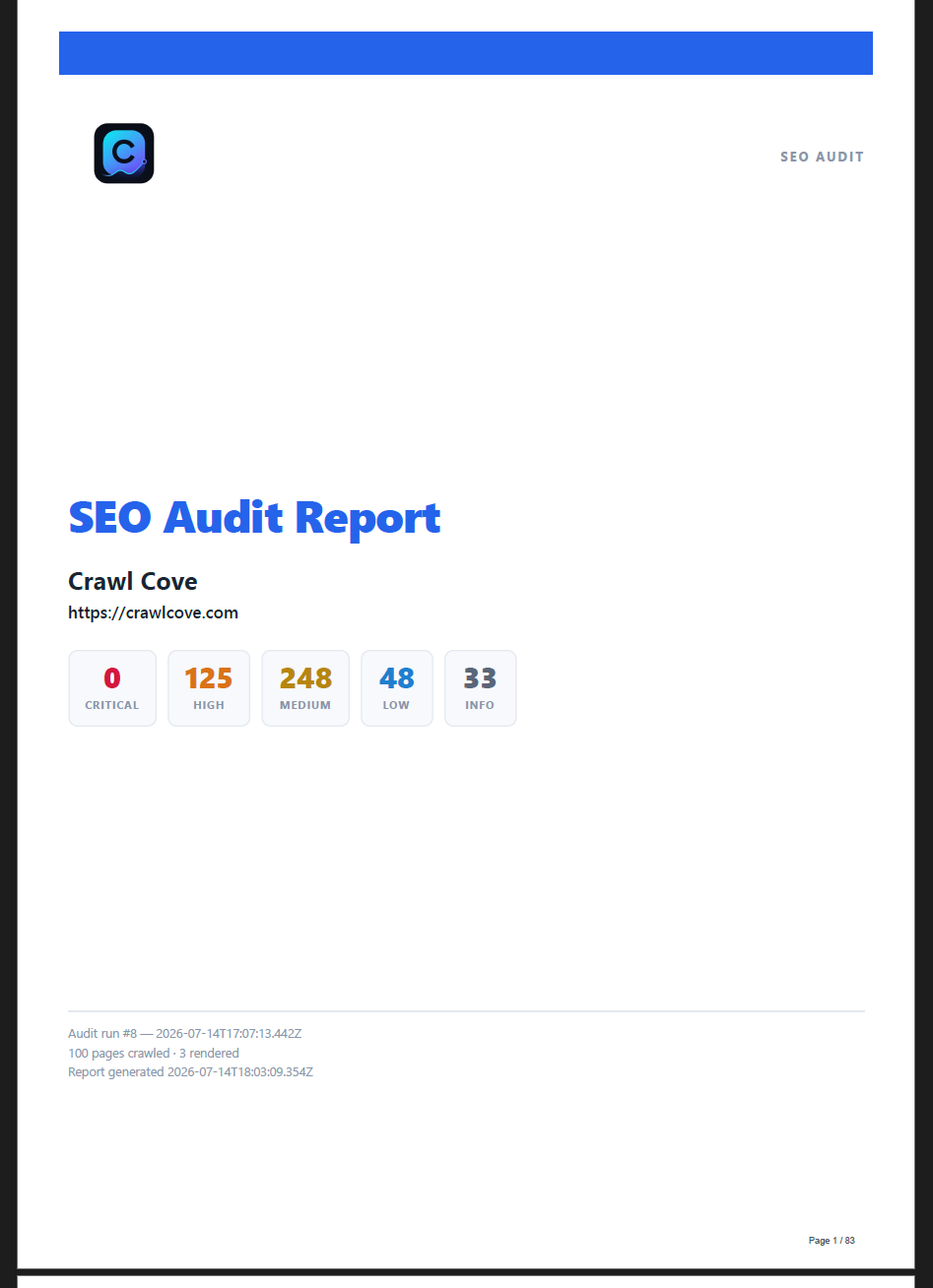
When the sections look right, export to PDF or HTML. The PDF opens with an agency-grade cover page — a brand band, the client logo, the client name and domain, and a real severity summary — and renders page numbers on every page, so it reads like a document you'd charge for, not a console dump.
Below the builder sits a history of generated reports with their sent dates, so you always have last month's deliverable to hand for a comparison or a re-send.
Two kinds of report
The Reports page produces two deliverables from the same client data:
- The full audit report — the section-by-section document described above, drawn from one or more crawl runs.
- The keyword-movement report — rank deltas over time, drawn from your tracked keywords. It's the "here's where you moved this month" story for a client who mostly cares about positions.
Two Export CSV buttons (for your own tooling)
Alongside the PDF, the Reports page has two Export CSV buttons — for feeding data into a spreadsheet or another tool rather than for the client:
- Findings CSV — run-scoped. Open findings (open / in progress / regressed) sorted by impact, each with severity, category, check id, URL, evidence, and recommendation. This is one audit run's to-do list as a spreadsheet.
- Keywords CSV — site-scoped. Per-keyword weekly and monthly position deltas across the whole site.
Tip
Remember which scope is which: Findings CSV is one crawl run; Keywords CSV is the whole site over time. Both open a native save dialog (the main process owns the file path — the renderer never touches your filesystem) and show an inline success, cancel, or error message, so an export never fails silently.
Why this matters
Consistent branding without effort is what makes monthly reporting sustainable. Because the theme is captured once and applied automatically, and because the numbers come straight from a real audit run, you're not rebuilding trust in the document every month — you're shipping the same professional artifact, faster. Report assembly drops from hours to about ten minutes, and the client sees a deliverable that looks like a retainer worth keeping.
Next
- Proving the fix worked — the run-to-run deltas that give your report a credible "what changed since last month."
- Exporting your data: CSV & database backup — the full picture on the two CSVs and taking your whole database with you.
Related
- Configuring the optional LLM backend — turn on the drafted executive summary (or leave it off).