
Google Search Console (GSC) is the connection that changes how Crawl Cove feels. Without it you get a deterministic audit ranked by severity, which is already useful. With it, every finding is weighted by the real impressions sitting on the affected pages, so "412 findings" collapses into "fix these 9 first." GSC also powers the Search Performance page, free keyword rank tracking, and per-URL query data. Crawl Cove does not import server logs, so this is also how it answers the crawl-visibility questions a log file analyser would otherwise be asked for.
The best part of the design: you connect one Google account once, and that token then serves every client you manage. Per client, you only pick the property.
Note
What you'll need: Crawl Cove installed, and a Google account that has your clients' sites in Search Console. That is the whole list. From version 1.0.0 Crawl Cove ships with the Google client it needs, so there is no Google Cloud project to create and nothing to paste. No billing, no paid API. GSC is free.
Tip
Upgrading from an earlier version? Every release before 1.0.0 shipped without that client, so connecting used to mean building a Google Cloud project first. If you already did, nothing breaks and you do not have to undo it. If you would rather keep using your own client, see Advanced: use your own Google Cloud client at the end.
Part 1: Connect the Google account (once, account-level)
- Open the Connections page (or Settings → Google Search Console).
- Click Connect Google Search Console. Your system browser opens Google's sign-in screen.
- Choose the Google account that has your clients' sites in Search Console.
- Grant the read-only scope. Crawl Cove asks for
https://www.googleapis.com/auth/webmasters.readonly, which lets it read your Search Console data and never change it. - The loopback tab confirms the connection and you are done.
Crawl Cove never sees your Google password: the sign-in happens on Google's own
pages, and the app completes it through a local loopback URL on your own machine.
The token that comes back is stored encrypted on your machine via Electron
safeStorage, and the app's interface only ever sees a configured boolean.
This step is account-level. You do it once, full stop. Every client that uses this Google account reuses the same token. No re-authorizing.
Part 2: Point each client at a property
- Back in the client's Connections page (or step 3 of the onboarding
wizard), pick the property for this client and click Connect. The
matching domain is pre-selected, and Crawl Cove handles both Search Console
property forms:
sc-domain:example.com(domain property) andhttps://example.com/(URL-prefix property).
The first 90-day sync
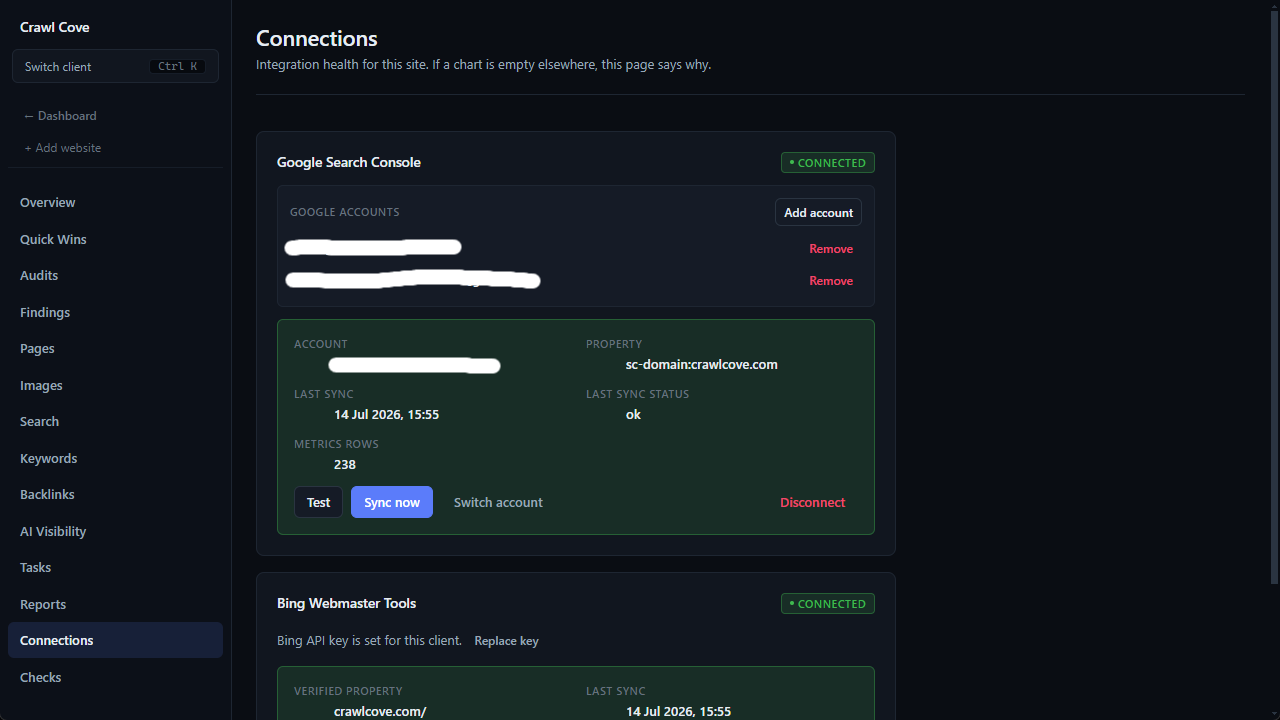
- The first 90-day sync runs with visible progress. When it finishes, the Connections card shows the property, the last-sync time, and the row count, and your findings re-rank by impact immediately. From here, repeat step 6 for each additional client; no re-authorization is ever needed.
Note
GSC data itself lags about two days, and each sync pulls a rolling 90-day window. History accumulates as you keep syncing, so the longer a client is connected, the richer the rank and search-performance picture becomes.
If a client's query-level numbers ever look lower than the totals you expect, that is usually anonymised queries, not missing data.
Multiple Google accounts are supported
You're not limited to one login. Crawl Cove can hold several connected Google accounts (shown by email), and you choose which account + property each client uses. So a client whose site lives in a different Google account syncs from that account, with no conflict. Connect each account once, the same way as above.
If a connection ever expires
Heads up
Google can invalidate an authorisation: you might revoke Crawl Cove's access from your Google account, change the account's password, or hit one of Google's own token lifetime rules. When that happens the next sync fails and Crawl Cove marks the connection expired or invalid.
Failures are never silent. You get a prominent red "reconnect required" banner rather than quietly stale numbers, and reconnecting is the same one click as Part 1. Your synced history is not thrown away.
Why this is worth doing first
Connecting GSC is what turns Crawl Cove from a crawler into an agency tool. The impact score (severity weighted by the log of GSC impressions on each finding's affected URLs) is what lets you walk into a client call and say "these nine issues sit on pages worth tens of thousands of monthly impressions; everything else can wait." That's a defensible, deterministic priority order, built entirely on free data that lives on your own machine.
Advanced: use your own Google Cloud OAuth client
Most people should skip this. Crawl Cove ships with a working Google client and the one-click path above needs nothing from you. But agencies who would rather authorise against a client of their own can, and the app keeps the option under Settings → Use your own Google Cloud OAuth client.
Heads up
Saving your own client replaces the client for every client workspace, and you will need to reconnect each Google account afterwards. Do it before you connect accounts, not after.
- At console.cloud.google.com, create a New Project and select it.
- Open APIs & Services → Library, search for "Google Search Console API", and click Enable.
- Open APIs & Services → OAuth consent screen, choose user type
External, fill in the app name and your own email for both contacts, then
add the scope
https://www.googleapis.com/auth/webmasters.readonlyand add your own Google address under Test users. - Open APIs & Services → Credentials → Create Credentials → OAuth client ID, choose application type Desktop app, and copy the Client ID and Client secret.
- In Crawl Cove, open Settings → Use your own Google Cloud OAuth client, paste both, and Save. Then connect the account as in Part 1.
Tip
"Desktop app" is the correct client type. Crawl Cove is a desktop application and completes the sign-in via a local loopback URL on your own machine. There is no web server or redirect domain to configure.
While your own consent screen's publishing status is "Testing", Google expires refresh tokens after 7 days, so the connection will need remaking about weekly until you publish it. That is a Google policy, not a Crawl Cove bug, and it is one of the reasons the bundled client is now the default route.
Next
- Prioritising with impact score: how GSC impressions turn hundreds of findings into a ranked to-do list.
- Search Performance: declining pages & striking-distance keywords: the reports GSC unlocks the moment your first sync finishes.